The Privacy Settings Worth Changing on Every Device You Own
Dakari Gross
September 25, 2026
Most people do not actively choose their digital privacy settings. They accept whatever their phone, laptop, browser, television, or app recommends during setup and move on. That is understandable. Nobody wants to spend an hour reading permission screens when they just want to use a new device.
The problem is that default settings are designed for convenience and broad functionality, not necessarily for maximum privacy. Apps may request access to your location, microphone, contacts, photos, advertising identifiers, and background activity even when those permissions are not essential to what you actually use them for.
You do not need to disappear from the internet or disable every useful feature. A much more practical approach is to reduce unnecessary access while keeping the services you genuinely want.
Start by reviewing location access
Location is one of the most sensitive permissions on a modern device because it can reveal where you live, work, shop, exercise, and spend time.
Some apps genuinely need it. Navigation apps are an obvious example. A weather app may also benefit from knowing your approximate location.
Other requests deserve more skepticism.
Does a shopping app really need your precise location all day? Does a game need to know where you are when you are not playing it?
Modern operating systems often provide several levels of location access. Depending on the device, you may be able to choose between constant access, access only while using the app, approximate location, precise location, or no access.
For many apps, “while using” or approximate access is enough.
Check which apps can use your microphone
Microphone permission sounds alarming because nobody wants apps casually listening to private conversations.
In practice, many legitimate features require microphone access. Video calls, voice messages, recording apps, voice assistants, and some camera functions are obvious examples.
The useful question is whether every app currently holding permission still needs it.
Over several years, people accumulate apps and grant permissions they eventually forget about.
Opening your device’s privacy settings and reviewing microphone access can reveal some surprising leftovers.
If you cannot think of a reason an app needs your microphone, disabling the permission is a sensible default. You can always grant it again later if a feature stops working.
Do the same with camera permissions
Camera access follows the same principle.
A video-calling app needs it.
A social media app may need it when you take photographs or record videos directly inside the app.
But many applications do not require permanent camera access simply because they contain an occasional scanning or uploading feature.
Review the list.
Removing camera permission does not necessarily mean deleting the app. It simply means the application needs to ask again if you later use a feature requiring the camera.
Privacy becomes easier when permissions are treated as temporary access rather than permanent ownership.
Be selective with photo-library access
Photo permissions deserve particular attention because modern phones can contain years of personal history.
Vacation photographs, screenshots, children’s pictures, identification documents, medical information, receipts, and countless other private images may all exist in the same library.
An app that needs one photograph does not necessarily need access to every photograph you have ever taken.
Many modern phones allow users to give an application access only to selected photos rather than the entire library.
Use that option when practical.
It is a good example of the principle of least privilege: give software only the access required to perform the task you actually want.
Contact access should not be automatic
Applications frequently ask to access your contacts because doing so makes it easier to find friends or invite people.
But your contact list contains information about other people too.
Granting access can expose names, phone numbers, email addresses, and other stored information to an application.
Before accepting, ask whether the feature is worth the permission.
If you genuinely want an app to identify which friends already use the service, contact access may be useful.
If not, decline it.
Convenience is a valid reason to share information, but it should be a decision rather than an automatic response.
Limit background activity when it provides little value
Many apps continue performing tasks even when you are not actively using them.
Background activity can be useful. Messaging apps need to receive messages. Navigation apps may need location updates during a journey. Cloud services may upload photographs automatically.
But not every application needs continuous background access.
Restricting unnecessary background activity can improve privacy while sometimes helping battery life and reducing data usage.
Again, avoid treating this as an all-or-nothing rule.
The goal is not to disable every background process.
It is to identify which ones actually provide something you value.
Turn off unnecessary ad personalization
Many platforms build advertising profiles based on activity, interests, or other signals.
Privacy settings may allow you to limit personalized advertising or reduce certain forms of cross-app tracking.
Turning these settings off does not necessarily eliminate advertisements.
Instead, it can reduce how much your activity is used to personalize the ads you receive.
This distinction is important.
Privacy controls often limit data use rather than making tracking or advertising disappear completely.
Review the advertising and tracking sections of your phone, browser, major online accounts, and smart devices rather than assuming one setting covers everything.
Review browser privacy settings
Your browser is one of the most important privacy tools you use because so much online activity passes through it.
Modern browsers offer controls related to cookies, tracking protection, site permissions, saved passwords, location, camera access, microphone access, notifications, and browsing history.
Third-party tracking deserves particular attention.
Websites can use cookies and other technologies for legitimate functions such as keeping you signed in, but tracking technologies can also follow activity across multiple sites.
Stronger tracking-protection settings can reduce some of this activity, although extremely aggressive settings may occasionally break website functionality.
A reasonable privacy setup should protect you without making the web unusable.
Stop websites from sending notifications you never wanted
Website notifications are not necessarily a major privacy threat, but they illustrate how quickly permissions accumulate.
You visit a site once.
It asks to send notifications.
You tap “Allow” without thinking.
Months later, your device receives alerts from a website you barely remember visiting.
Review notification permissions periodically and remove sites that no longer deserve direct access to your attention.
The same principle applies to apps.
Notifications are a permission too.
Your attention is valuable information about you, and you do not need to give every application the ability to interrupt you whenever it wants.
Check cloud backups
Cloud backups are incredibly useful.
They can save years of photographs and important information when a device is lost, damaged, or replaced.
But you should understand what is actually being backed up.
Review which applications store information in the cloud, whether sensitive categories are included, and what security options your provider offers.
You may discover old devices or applications still associated with your account.
Removing obsolete access reduces unnecessary exposure.
Cloud storage itself is not automatically a privacy problem. The important part is understanding what is stored, where it is stored, and who can access the account.
Secure your accounts with more than a password
Privacy settings matter little if someone can simply log into your account.
Use strong, unique passwords for important services rather than recycling one password everywhere.
A password manager can make this dramatically easier.
Multi-factor authentication adds another layer of protection by requiring additional verification beyond the password.
Where available, passkeys can provide another strong and convenient authentication option.
These measures are technically security settings rather than pure privacy controls, but the distinction matters very little when someone has gained access to your photos, email, messages, or cloud files.
Security protects privacy.
Review connected apps and old logins
Over time, online accounts accumulate connections.
You may have used your Google, Apple, Microsoft, Facebook, or another major account to sign into websites and applications you no longer remember.
Review those connected services occasionally.
If you stopped using an application years ago, it probably does not need continued account access.
The same applies to old devices.
A phone you sold, laptop you replaced, or tablet you stopped using should not remain indefinitely connected to important accounts if there is no reason for it.
Digital privacy improves when you periodically clean up the past rather than focusing only on new permissions.
Smart TVs deserve a privacy check too
Phones receive most of the privacy attention, but modern televisions are internet-connected computers.
Smart TVs may collect information about usage, viewing habits, voice commands, advertising interactions, and other activity depending on the manufacturer and enabled features.
Look through the television’s privacy, advertising, viewing-data, and voice-recognition settings.
Some people will happily exchange certain data for personalized recommendations.
Others will not.
The important part is knowing the collection is happening and deciding accordingly.
A television should not receive less scrutiny simply because it sits in your living room instead of your pocket.
Voice assistants should match how much you actually use them
Voice assistants need microphone access because listening for commands is fundamental to their purpose.
If you use voice control constantly, that tradeoff may be worthwhile.
If you never use it, keeping every voice-assistant feature enabled makes less sense.
Review activation settings, stored voice history, personalization options, and any controls related to how recordings or interactions are retained or used.
You do not need to disable useful technology simply because it involves data.
You should understand the exchange.
Privacy is largely about making those exchanges deliberately.
App permissions should be reviewed repeatedly
Privacy is not something you configure once when buying a phone and then forget for five years.
Apps change.
Operating systems change.
New permissions appear.
Your own behavior changes too.
An application you used daily last year may now sit unopened while retaining access to your location, microphone, photos, and contacts.
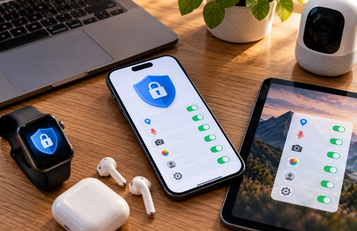
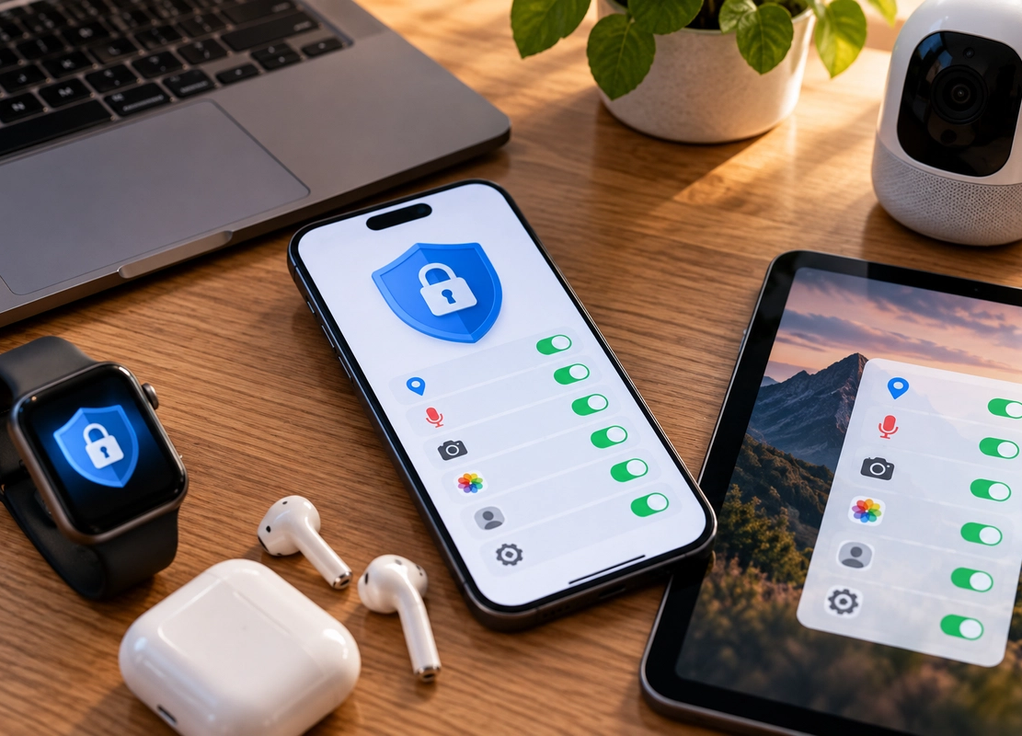
A simple periodic privacy check can solve much of this.
Open the privacy dashboard on your phone or computer and look through the major categories.
Location.
Camera.
Microphone.
Photos.
Contacts.
Tracking.
Background activity.
You will probably find at least a few permissions that no longer make sense.
The best privacy setting is usually “only when necessary”
Perfect digital privacy is difficult if you want to use modern online services.
Every useful digital interaction involves some exchange of information.
Navigation requires knowing where you are.
Cloud photo backup requires receiving your photos.
Video calls require camera and microphone access.
The practical goal is therefore not zero data sharing.
It is intentional data sharing.
Give applications the information required to provide the features you actually want. Remove access when it is no longer necessary. Secure the accounts containing your most sensitive information. Review old connections occasionally.
Most people do not need an extreme privacy setup.
They simply need to stop giving every device and application permanent permission to everything.
That small change in mindset—from “allow by default” to “allow when useful”—can dramatically improve your digital privacy without making your technology harder to use.